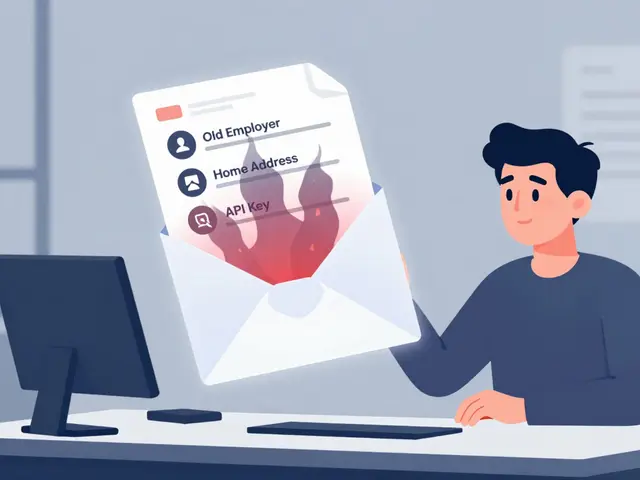
You just finished a contract for a high-profile client. You send over the final Word document or PDF via your favorite freelance platform. It feels like a job well done-until you realize that buried deep inside the file's hidden properties is the name of your previous employer, your home address, and perhaps even an API key you forgot to delete.
This isn't just a theoretical risk. In April 2026, a massive security failure on the Fiverr gig-work platform exposed thousands of private files. Security researchers found that documents shared between freelancers and clients-including tax forms with Social Security numbers and driver's licenses-were left publicly accessible because of misconfigured cloud storage. While that specific incident involved platform-level errors, it highlighted a universal truth: if you are sending digital files, you are likely sending more than just the visible text.
The Hidden Data Inside Your Files
Most people think of a document as the words they see on the screen. But technically, a modern office file is a container. Whether you are using Microsoft Office or LibreOffice, your .docx, .xlsx, or .pptx files are actually ZIP archives containing XML code. This structure allows for rich formatting, but it also creates hiding spots for data you didn't intend to share.
Inside these archives, there are specific locations where software records history. In Office Open XML files (like DOCX), this data lives in three main places:
- Core properties (
docProps/core.xml): Stores who created the file, when it was last modified, and the title. - Application properties (
docProps/app.xml): Tracks how long you spent editing, which template you used, and often includes your company name. - Custom properties (
docProps/custom.xml): Holds extra fields added by add-ins or internal corporate systems.
If you use OpenDocument formats (like ODT from LibreOffice), the logic is similar, with most metadata stored in a file called meta.xml.
When you switch jobs or start freelancing, your computer doesn't automatically forget your old identity. The software continues to tag new files with your "Author" and "Company" fields based on your profile settings. If you haven't updated those settings, every deliverable you send out carries a digital watermark pointing back to your former employer.
Why Freelancers Are Vulnerable
Freelancers operate in a unique pressure cooker. You need to prove your skills, so you share work samples. You need to get paid, so you verify your identity with tax documents. You need to collaborate, so you share drafts with tracked changes. Every step introduces risk.
The Fiverr case study serves as a stark warning. Researchers discovered that files were not only stored insecurely but were indexed by search engines. A simple Google query could pull up sensitive contracts and personal IDs. While that was a platform failure, it proved that once a file leaves your control, its safety depends on infrastructure you cannot monitor.
Even if the platform is secure, the file itself might be compromised. Consider this scenario: You download a template from a client, fill it out, and send it back. That template might contain custom properties from the client's internal system. Or worse, you send a file from your personal laptop, and the metadata reveals that you used a font license tied to a different business entity. These small leaks can break non-compete clauses or confuse client audits.
How to Inspect Your Files Before Sending
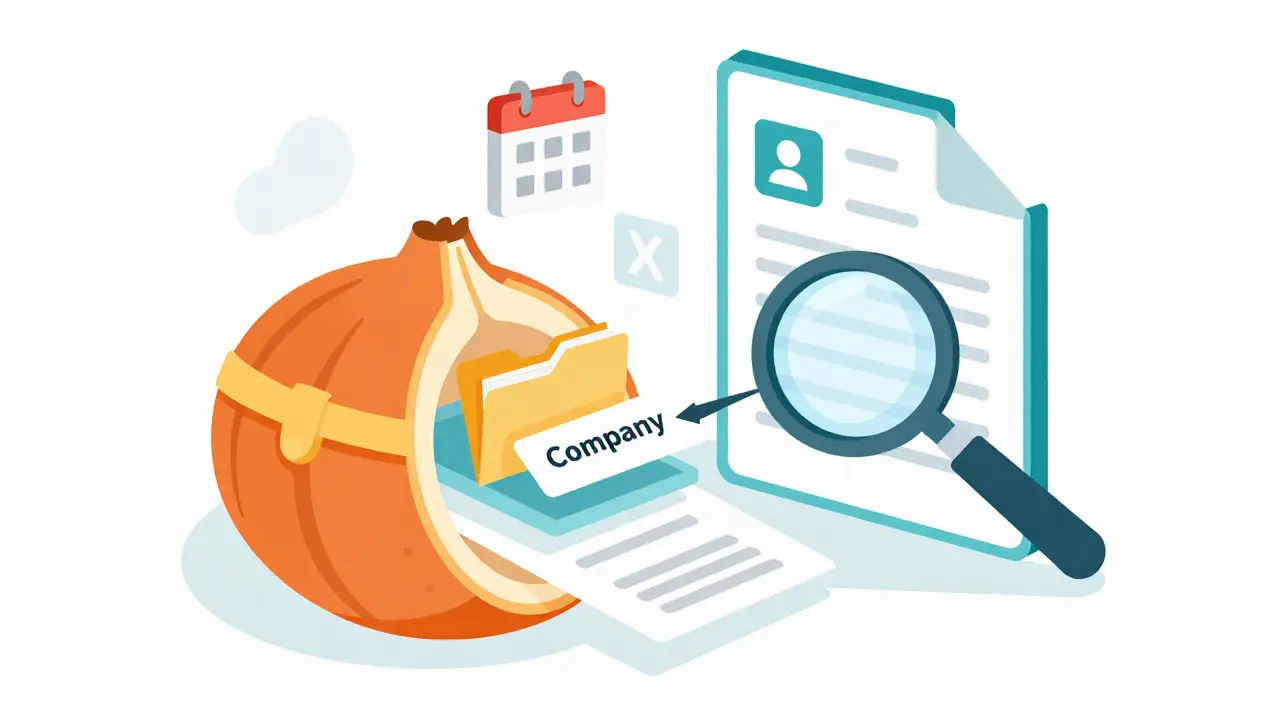
Before you worry about removing data, you need to know what is there. Most users have no idea what their documents look like to a forensic analyst. You don't need expensive software to check; you just need the right approach.
If you are on Windows and have Microsoft Office installed, you can use the built-in Document Inspector. Go to File > Info > Check for Issues > Inspect Document. This tool scans for hidden text, comments, and author information. However, this option is unavailable to Mac users, Linux users, or anyone relying on free alternatives like LibreOffice.
For everyone else, a browser-based solution offers a transparent alternative. Tools that run entirely in your browser allow you to upload a file, view its raw metadata in a readable format, and decide what to keep or discard. The critical advantage here is privacy. Since the processing happens locally using JavaScript and WebAssembly, the file never touches a server. You can verify this yourself by opening your browser's developer tools and checking the network tab while the tool runs-if nothing uploads, you are safe.
I recommend using Vaulternal's document metadata remover for this inspection step. It supports both Office Open XML (DOCX, XLSX, PPTX) and OpenDocument (ODT, ODS, ODP) formats. When you load a file, it shows you exactly what is stored in the core and application properties. You might see your old company name listed under "Organization" or a revision count that suggests you edited the doc hundreds of times. Seeing this data makes the abstract concept of "metadata" concrete and urgent.
Stripping Metadata Without Losing Content
Once you identify the problem, the solution is to strip the unwanted properties. You want to remove the historical baggage without breaking the document's formatting or content.
A good metadata cleaner should handle several key areas:
- Author and Last Modified By: Change these to generic terms like "Freelancer" or leave them blank.
- Company/Organization: Remove any reference to previous employers.
- Total Editing Time: This can reveal how much effort you put into a task, which some clients may judge unfairly.
- Custom Properties: Delete any fields added by old templates or corporate software.
Be careful with tracked changes and comments. These are not always stripped by default because they are part of the document's active content. If you want to hide your editing history, you must explicitly choose to remove them. However, remember that removing tracked changes also removes the edits themselves. If you are sending a final version, accept all changes first, then strip the metadata.
Using a client-side tool ensures that this cleaning process is private. Unlike online converters that require you to upload your file to a remote server, a local processor keeps every byte on your device. This is crucial when handling legal contracts, financial reports, or confidential client strategies. After cleaning, some tools even provide a JSON export of the removed fields, giving you an audit trail to prove to clients that you sanitized the file.
Beyond Metadata: Other Freelancer Pitfalls
Cleaning metadata is just one layer of defense. Freelancers must also watch out for other embedded data types.
Hyperlinks and Paths: Sometimes, documents contain hyperlinks that point to internal network drives or previous client folders. For example, a link might read file:///C:/Users/OldEmployee/Documents/ProjectX. This path reveals your username and directory structure. Always check external links before sharing.
API Keys and Credentials: Developers often embed temporary API keys in code snippets or documentation to demonstrate functionality. Never send a file with active credentials. Use placeholder values like YOUR_API_KEY_HERE instead.
Image EXIF Data: If you include screenshots or photos in your deliverables, those images carry their own metadata. GPS coordinates, camera models, and timestamps can be embedded in JPEGs. Ensure your image editor strips this data, or use a dedicated image metadata remover alongside your document cleaner.
Building a Secure Workflow
Preventing leaks requires a consistent habit. Here is a checklist for every deliverable:
- Update your profile settings: In your word processor, go to Options/Preferences and set your Name and Initials to your professional brand, not your personal name or old employer.
- Use clean templates: Create a master template with no metadata. Start new projects from this file rather than saving copies of old ones.
- Inspect before sending: Make running a metadata inspector the last step in your workflow. Treat it like proofreading.
- Convert formats wisely: Converting a Word doc to PDF can sometimes flatten metadata, but not always. Modern PDFs retain author info and creation dates. Always inspect the final PDF as well.
- Verify platform security: Be aware that platforms like Fiverr, Upwork, or direct email attachments have varying levels of security. Assume that anything you send could eventually be exposed.
The Fiverr incident showed us that trust in third-party infrastructure is fragile. Even major platforms make mistakes. As a freelancer, your best protection is to assume zero trust. Clean your files, verify your settings, and ensure that the only story your document tells is the one you intended to write.
What is the Fiverr metadata leak?
In April 2026, security researchers discovered that thousands of private files on the Fiverr platform were publicly accessible due to misconfigured cloud storage. These files included sensitive documents like tax forms, ID cards, and contracts shared between freelancers and clients. The URLs were indexed by search engines, making private data searchable via Google.
Does converting to PDF remove metadata?
Not necessarily. While converting from Word to PDF can change the structure of the file, modern PDF readers still store metadata such as author name, creation date, and software used. You should always inspect a PDF for hidden data before sending it to a client.
Is it safe to use online metadata removers?
It depends on the tool. Many online services upload your file to their servers to process it, which poses a privacy risk for confidential documents. Safer options are client-side tools that run in your browser using JavaScript and WebAssembly, ensuring the file never leaves your device.
Where is metadata stored in a DOCX file?
A DOCX file is a ZIP archive containing XML files. Core metadata is stored in docProps/core.xml, application-specific data in docProps/app.xml, and custom properties in docProps/custom.xml. Stripping metadata involves modifying or deleting entries in these specific XML files.
Can I remove tracked changes without losing edits?
No. Tracked changes record the edits themselves. To remove the track marks, you must either "Accept All Changes" (which keeps the edits but hides the history) or "Reject All Changes" (which reverts the document). Simply stripping metadata does not remove tracked changes unless you specifically select that option in a cleaning tool.
stalin brian
hey guys, i just read this and it got me thinking about how many times ive sent files without checking. its crazy how much info is hidden in there. i always thought the doc was just the words on the page but now im paranoid lol. thanks for sharing this info.
Edith Mair
This is absolute nonsense for most people to worry about unless they are spies. You are creating panic where there is none. Most clients do not care about your metadata, they care if the work is done. Stop overcomplicating simple tasks with security theater that slows everyone down. Just send the file and move on with your life.
Craig Swanson
I hear you Edith, but honestly, as a mentor in this space, I have to say that professionalism includes protecting your own identity. It is not about paranoia, it is about boundaries. When you hand over a document, you are handing over a piece of your digital footprint. By cleaning it, you assert control over your professional brand. It takes thirty seconds and it shows you respect the process enough to be thorough. Let us help each other build better habits rather than dismissing valid concerns. We want to empower freelancers to feel safe and secure in their workflows.
lorna erni
OMG yes Craig! This is so important!! I am literally shaking right now because I just realized my last invoice had my old company name in it!! Can we all just promise to check our settings?? It is super easy to fix and why risk it?? Lets support each other in being safe and smart out here!! Love this post so much!!!
kamal ifrani
You people are all idiots. The real issue is that platforms like Fiverr are garbage and you are blaming yourselves for their incompetence. But sure, let us pretend that stripping XML tags is going to save you from corporate espionage when the server itself is wide open. It is pathetic that you think a little metadata cleanup fixes the systemic rot of the gig economy. Wake up sheeple.
saradee dee
Oh wow, that is really harsh Kamal. I know things can be stressful but please be nice. We are all trying our best. I found this article very helpful actually. It made me realize I need to change my template settings. It is not too late to learn new things. Let us just help each other instead of fighting. Peace and love to everyone here.
Bill Gunn
Hey folks! 👋 Bill here. I totally agree with the sentiment that we need to be careful. 🛡️ I use a script that runs locally to strip these fields automatically. It is a game changer! 🚀 No need to upload anything to shady websites. Just keep your data local and safe. 💻✨ #FreelanceLife #SecurityFirst
Dana Rapoport
The philosophy behind this is interesting. We often view our tools as neutral extensions of our will, yet they retain memories of our past selves. To sanitize a document is to curate one's present identity against the noise of history. It requires mindfulness. One must ask: what story does this artifact tell? Is it the story I wish to project, or merely the echo of who I was yesterday? Consider this deeply.
Hadleigh Edwards
I have been doing freelance work for quite some time now and I can tell you from experience that building a routine is absolutely essential for maintaining your sanity and your security over the long haul because if you do not establish these checks and balances early on in your career trajectory then you are going to find yourself scrambling at the eleventh hour trying to figure out why a client is confused about your affiliation with a previous employer which could potentially jeopardize the contract and lead to unnecessary legal headaches that nobody wants to deal with especially when you are already stressed about meeting deadlines so just take a few minutes every single day to update your preferences and run a quick inspection tool before you hit send and you will sleep so much better at night knowing that your digital house is in order and that you are presenting your best possible self to the world with confidence and clarity and professionalism that shines through in every single interaction you have with your clients and colleagues alike.
mark valmart
man i just use pdfs and forget about it. seems easier than digging into xml files. hope this helps someone though.
Crystal Davis
Converting to PDF does not magically erase metadata. Modern PDF readers store author names, creation dates, and software used. You still need to inspect the final PDF. Relying on format conversion alone is a rookie mistake that leaves you exposed. Do your due diligence.